How to Manage Live Chat Conversations in Slack
Quick answer
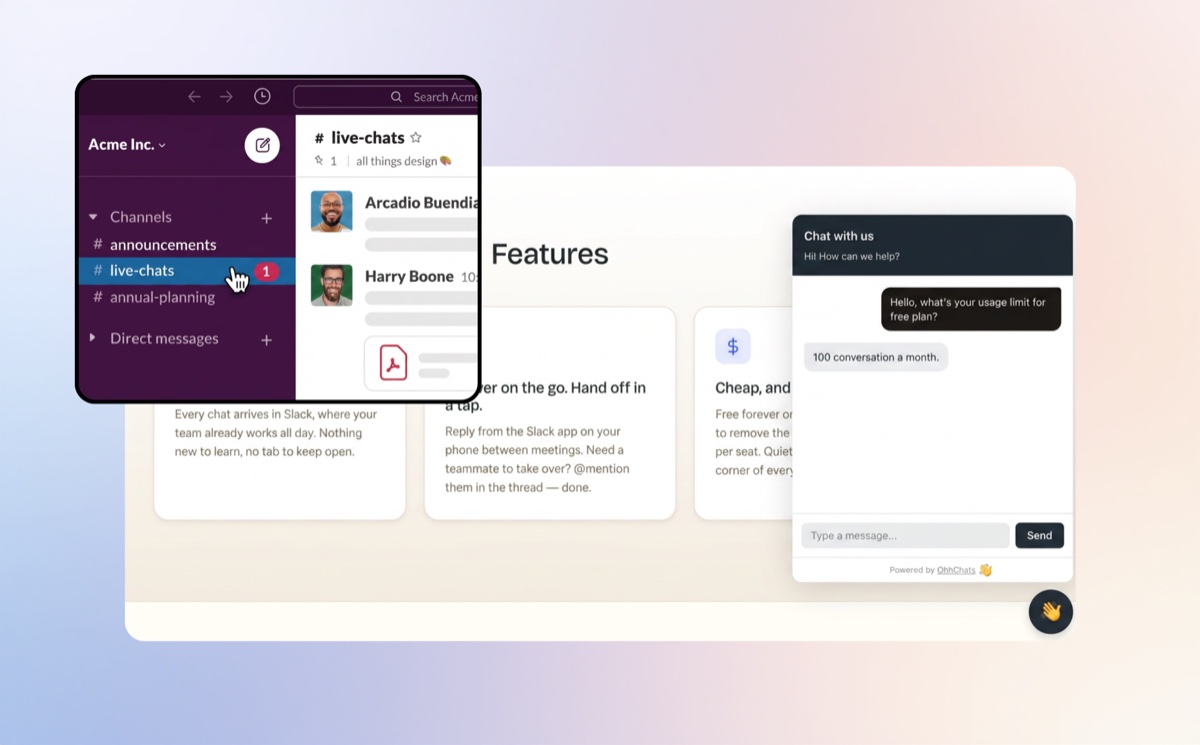
To manage live chat conversations in Slack, you connect a Slack-native chat widget to your website. Every visitor message lands in a Slack channel your team already uses, and you reply right inside the thread. The visitor sees your reply on your site in real time — no separate dashboard, no extra login, no new app to babysit.
Why do this in Slack at all?
Most live chat tools assume you have someone sitting in front of a support dashboard all day, waiting. Small teams, founders, and agencies don't work that way. You're already in Slack — talking to your team, sharing files, getting work done. Asking you to keep a second tab open and refresh it for the occasional website message is how chats get missed.
The point of "live" chat is speed. A visitor on your pricing page right now is the most valuable visitor you'll have all week, and that interest fades fast. According to a Harvard Business Review study of 2,241 companies (Oldroyd, McElheran and Elkington, 2011), businesses that responded to a new lead within 5 minutes were 21 times more likely to qualify it than those that waited 30 minutes. The same body of research found that around 78% of customers buy from the company that responds first — not the cheapest, not the best-known, just the fastest.
So the question isn't really "should we add live chat." It's "where will the message actually reach a human in time to matter." For a lot of teams, the honest answer is Slack: it's already open, it pings your phone, and you can reply from a coffee queue without logging into anything. That's a faster first response, a better SLA, and a happier customer — without changing how your team works.
How does managing live chat in Slack work?
The model is simple, and it removes the dashboard entirely:
- A visitor types a message into the chat widget on your website.
- The message appears in your Slack channel — the same one your team already watches — as a new thread.
- You reply inside that thread, like you would to any colleague.
- The visitor sees your reply on your site in the chat widget, in real time.
Each new conversation starts its own thread, so two visitors chatting at once don't get tangled. You can see who's already responding, hand off mid-conversation, or pull a teammate in with an @mention — all the things Slack is already good at, now pointed at your website visitors.
And because it's Slack, mobile comes free. If your phone already buzzes for Slack messages, it now buzzes for a customer on your site. You can answer a real sales question from anywhere, which is the whole reason "live" chat exists.
How to set up live chat in Slack
Here's how it works with OhhChats specifically. Setup takes a few minutes and doesn't need a developer.
- Add the widget to your site. Copy one snippet of code and paste it before the closing
</body>tag on your site. Most website builders have a spot for this under custom code or embeds. - Click "Add to Slack." This runs a one-click connection (OAuth) — you approve it once, then pick the Slack channel where you want visitor messages to land. No bot tokens, no channel IDs, no manual config.
- Send a test message. Open your site, type a message into the widget, and watch it appear in your chosen Slack channel. Reply in the thread and check that the reply shows up on your site.
That's it. From this point on, every website chat is a Slack thread, and every Slack reply is a website message.
How to reply to conversations in Slack
Day to day, managing chats is just using Slack threads — which you already know how to do. A few things worth knowing:
- Reply in the thread, not the main channel. Keeping each conversation in its thread is what lets the visitor see only the messages meant for them.
- Tag a teammate when you need backup. An @mention pulls the right person into the exact conversation, with full context, instead of forwarding a screenshot.
- Answer from your phone. Slack mobile notifications mean you don't have to be at your desk to give a fast first reply.
- Let the channel be your history. Past conversations stay searchable in Slack, so you don't need a separate inbox to look things up.
The big shift is that there's no "queue" to manage and no status to set. The conversation lives where your team already lives.
What happens when no one is online?
You won't always be at your desk, and that's fine — this is where an auto-reply earns its keep. When nobody in your Slack channel is available, OhhChats can do two things automatically:
- Send an instant auto-response so the visitor isn't left staring at silence. A simple "Thanks for reaching out — we're not online right now but we'll get back to you" sets the expectation and keeps the conversation warm.
- Collect the visitor's email. Instead of losing the lead the moment they leave your site, the widget asks for an email so you can follow up. That message still drops into your Slack channel, so the moment someone's free, the full context and a way to reach back are already waiting.
This is the difference between a missed chat and a captured lead. An off-hours visitor doesn't have to convert on the spot — you just need a way to reach them when you're back, and an email gives you that.
Live chat in Slack vs a separate help desk
| Feature | Live chat in Slack | Separate help desk dashboard |
|---|---|---|
| Where you reply | Inside Slack, in a thread | A separate app you log into |
| Mobile replies | Yes, via Slack's app | Usually a separate mobile app |
| Setup | Paste a snippet, one-click connect | Account setup, agent seats, configuration |
| Pricing model | Flat (OhhChats is $15/month per site, no per-seat fees) | Often per-agent, per-seat |
| Best for | Founders, small teams, agencies already living in Slack | Large support teams with dedicated agents and ticketing needs |
Bottom line: if your team is already in Slack and you don't want a second dashboard, managing chat in Slack is the lower-friction choice. If you have a dedicated support team that needs ticketing, SLAs, and reporting across many channels, a full help desk like Intercom or Zendesk is genuinely the better fit — and that's an honest call, not a knock.
Live chat apps that connect to Slack
OhhChats isn't the only way to do this. Several apps in the Slack Marketplace let you run website live chat from inside Slack, and the right one depends on how much you need beyond the basics. Here are the main options:
OhhChats
Slack-native chat built for founders, small teams, and agencies who want the simplest version of this. Visitor messages arrive as Slack threads, you reply in the thread, and pricing is flat at $15/month per site with no per-seat fees. It also handles offline auto-replies and email capture. Best if you want low setup and predictable cost over a long feature list.
Chatlio
One of the original live chat apps built around Slack. It puts a widget on your site, sends conversations into Slack, and adds touches like page-based trigger messages and visitor details such as location, browser, and the current page. A mature, proven choice if you want a Slack-first tool with a longer track record.
Social Intents
The most feature-heavy option. Alongside Slack live chat (as threads or one channel per conversation), it offers AI chatbots powered by ChatGPT, Claude, or Gemini, plus WhatsApp, Messenger, and SMS in the same inbox. Worth a look if you want AI to deflect routine questions and you handle more than just website chat.
SignalZen
Runs website chat through Slack as threads or dedicated channels, and also brings your support email into Slack so you can answer both in one place. It includes an AI assistant to cover visitors when your team is offline. Good if you want chat and email handled together inside Slack.
Olark
A long-running standalone live chat tool with a Slack app on top. You get Olark's own dashboard and agent commands, with Slack notifications and replies layered in. A fit if you want a fuller standalone chat product and treat Slack as one of several ways to respond.
Slack for LiveChat
If you already use LiveChat (the help desk), this official integration connects your account to Slack so agents can respond from either side, and route specific pages like pricing to specific channels. Best when you're already committed to LiveChat and just want a bridge into Slack.
A quick way to choose: if you want the simplest, cheapest, Slack-first setup, look at OhhChats or Chatlio. If you want AI chatbots and multiple channels, Social Intents covers the most ground. If you want chat plus email in one Slack flow, SignalZen fits. And if you already run a full help desk, the LiveChat or Olark route keeps your existing tool and adds Slack on top.
Is managing live chat in Slack right for you?
It's a strong fit if you're a solopreneur, a small team, or an agency, you're already in Slack every day, you want fast replies without hiring support staff, and you'd rather pay a flat price than per seat. It's probably not the right fit if you run a large support operation that needs formal ticketing, detailed SLA reporting, or a dozen integrated channels — in that case, a dedicated help desk will serve you better.
If the first description sounds like you, the simplest way to try it is to connect OhhChats to your Slack and send yourself a test message. You'll know within five minutes whether it fits how your team actually works.
Frequently asked questions
How do I manage live chat conversations in Slack?
Connect a Slack-native chat widget to your website. Visitor messages arrive in a Slack channel your team already uses, each as its own thread, and you reply inside the thread. The visitor sees your reply on your site in real time, so there's no separate dashboard to manage.
Can I reply to website visitors directly from Slack?
Yes. With a Slack-native tool like OhhChats, you reply inside the Slack thread and the visitor sees your message on your website live. Replies work from Slack on desktop or mobile, so you don't need to be at your computer.
Do I need a separate help desk tool to do live chat?
No. The whole idea of Slack-native live chat is to skip the separate help desk. Your website conversations route into Slack, where your team already works, so there's no extra app, login, or dashboard to maintain.
What happens to messages when my team is offline?
The widget can send an automatic reply letting the visitor know you're away, then collect their email so you can follow up. The message and email still land in your Slack channel, so you can respond the moment someone is available.
Does this work on mobile?
Yes. Because conversations live in Slack, you get them wherever you have Slack — including the mobile app. That lets you give a fast first reply to a website visitor even when you're away from your desk.
What are the best live chat apps that work with Slack?
The main live chat apps that integrate with Slack include OhhChats, Chatlio, Social Intents, SignalZen, Olark, and the official Slack integration for LiveChat. They all route website conversations into Slack so you can reply from there. They differ mainly in price, whether they offer AI chatbots, and whether they also handle channels like email, WhatsApp, or SMS.
How much does Slack live chat cost?
OhhChats is $15/month per site with no per-seat fees, so the price doesn't go up as your team grows. Other Slack-native tools and traditional help desks often charge per agent, which adds up quickly for growing teams.